

Getting started with PRP Quality
Create your account, verify your email, and securely access your first workspace.
Open guidePRP Quality Support
Start with practical guidance or contact our team for platform, audit, accreditation, regulatory, and consulting support.

Self-service guidance
Clear starting points for common platform and assurance tasks.
Create your account, verify your email, and securely access your first workspace.
Open guide
Build a trusted, shareable record of your expertise, experience, and professional evidence.
Open guide
Give the right people appropriate access to responsibilities, committees, evidence, and assurance work.
Open guide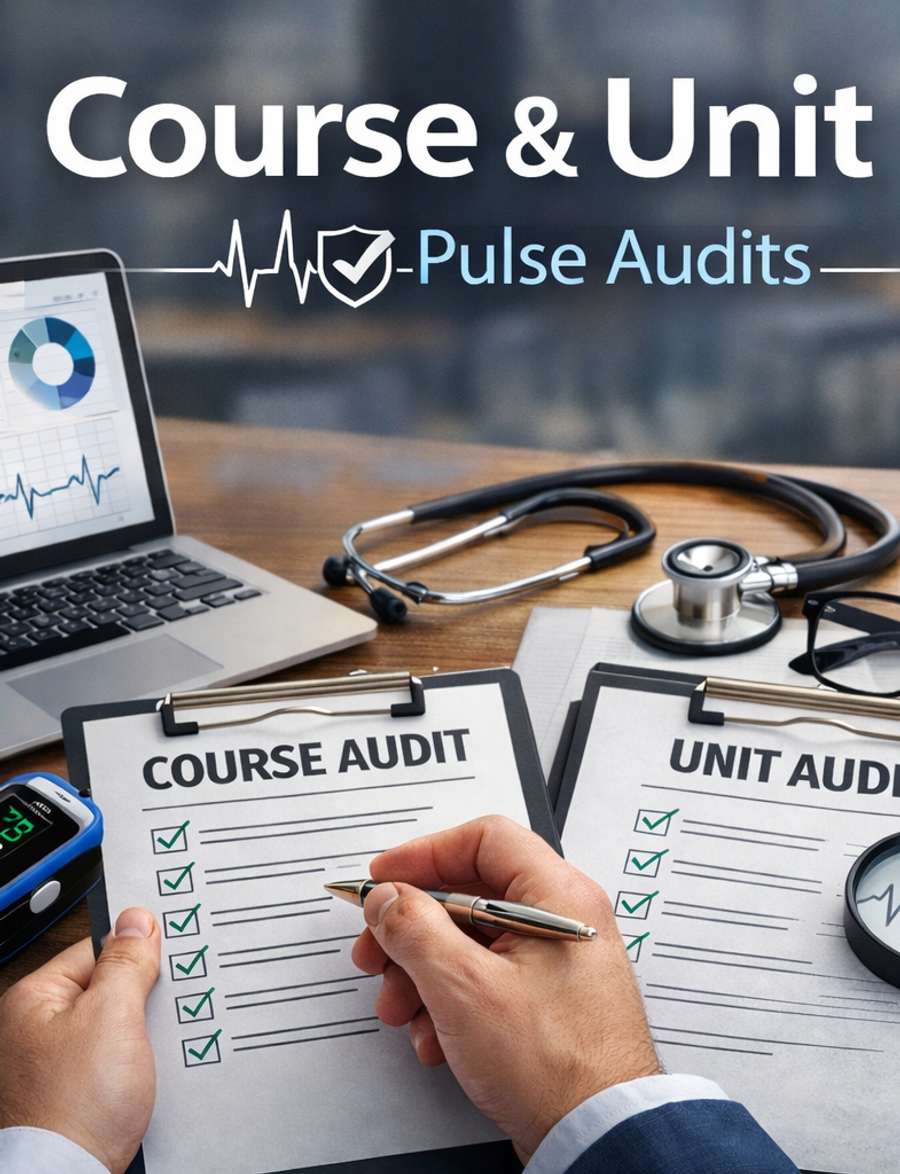
Create an AI-supported audit, map evidence, identify gaps, and prepare governance-ready outputs.
Open guide
Connect responsibilities, stakeholders, evidence, reviews, and reporting in one structured environment.
Open guide
Securely connect OpenAI or Google Gemini to enable AI-supported assurance workflows.
Open guideGetting started
PRP Quality connects daily quality work with continuous compliance, evidence management, governance reporting, and AI-supported audits.
Create your accountProfessional profile
Create a controlled, shareable professional reference point for institutions, colleagues, review panels, and validation activities.
Select your name in the top-right corner after logging in, then choose My Profile.
Select the role that best reflects your professional work so your profile fields remain relevant.
Use a clear address based on your name so institutions and validation panels can recognise it.
Choose which affiliations, expertise, links, specialist knowledge, and evidence can be viewed publicly.
Include a CV, qualifications, memberships, institutional pages, research profiles, or LinkedIn.
Save your changes and revisit the profile when your roles, qualifications, or contributions change.
Keep it current
Update your profile when qualifications, affiliations, professional roles, publications, review experience, or specialist knowledge change.
Teams and workspaces
Set up workspaces for different groups and areas of work, then organise users around their responsibilities, committees, key areas, and assurance activities.
A considered workspace structure helps teams collaborate efficiently while maintaining appropriate permissions and visibility across the organisation.
Create workspaces for teams, committees, key areas, and distinct assurance activities.
Give each person the permissions and visibility required for their role—without exposing unrelated work.
Provide a clear place to share information, review evidence, and coordinate assurance activity.
Preserve appropriate roles and boundaries while keeping connected work visible to authorised leaders.
A connected working structure
Keep shared information and evidence structured while giving teams a dependable place to collaborate, review information, and manage assurance activities.
Course and Unit Pulse Audits
Create an AI-supported pulse audit, map evidence to expectations, and add optional validation when independent assurance is required.
Go to Documents → Higher Education → Quality & Standards, select Create new Document, then choose Course and Unit Pulse Audit.
Upload the relevant course or unit documentation, using the evidence checklist to guide your submission.
Select Run AI Pulse Audit. PRP Quality analyses alignment, gaps, risks, and areas requiring attention.
Examine the audit summary and evidence mapping, including the key quality and governance indicators.
Request optional validation where required, then use the outputs for governance, improvement, and accreditation.
A concise, evidence-informed view of course or unit quality, readiness, and areas for improvement.
Governance and compliance support
Bring committees, key areas, key positions, external stakeholders, evidence, and assurance activity into one structured governance environment.
Maintain clearer lines of responsibility and give teams the information they need to support consistent governance, evidence-based assurance, and ongoing compliance.
Connect committees, roles, key positions, and key areas to clear lines of accountability.
Make important governance and compliance information easier to locate, review, and reuse.
Link responsibilities and assurance activities to the appropriate areas of the organisation.
Use organised evidence and reporting to maintain visibility of compliance and readiness.
Give governance teams a clearer view of current information, actions, decisions, and evidence.
Maintain structured governance records and defensible evidence for external review.
Adding your AI System Key
A connected provider key enables AI Pulse Audit reports, evidence-to-standard mapping, traffic-light ratings, governance summaries, and validation support.
Before you begin
Create an API key in OpenAI Platform or Google AI Studio. Store it securely because secret keys may only be shown once.
Expert support
Share the outcome you are working towards. We will route your request to the right person.
Email us directly
info@prpquality.io